
Applies to: Employees with an active assessment
Your self-assessment is where you rate your own skills. It's a focused, full-screen task that saves as you go.
Before you start
The assessment setup must be approved and the assessment activated (status Awaiting responses).
Set aside a few uninterrupted minutes — though your progress saves automatically if you step away.
Steps
Open the assessment — from My Assessments → Action Required, open the assessment and select Start Assessment (your Self-Assessment).
2. Rate each skill — skills are grouped by cluster. For each skill, choose your Proficiency Level from 1 to 5 (or N/A). The level descriptions appear across the top: 1 Basic awareness only → 5 Expert reference.3. Work through every cluster — your ratings save automatically as you go, so you can pause and return. 4. Submit — once you've rated every skill, submit your self-assessment.
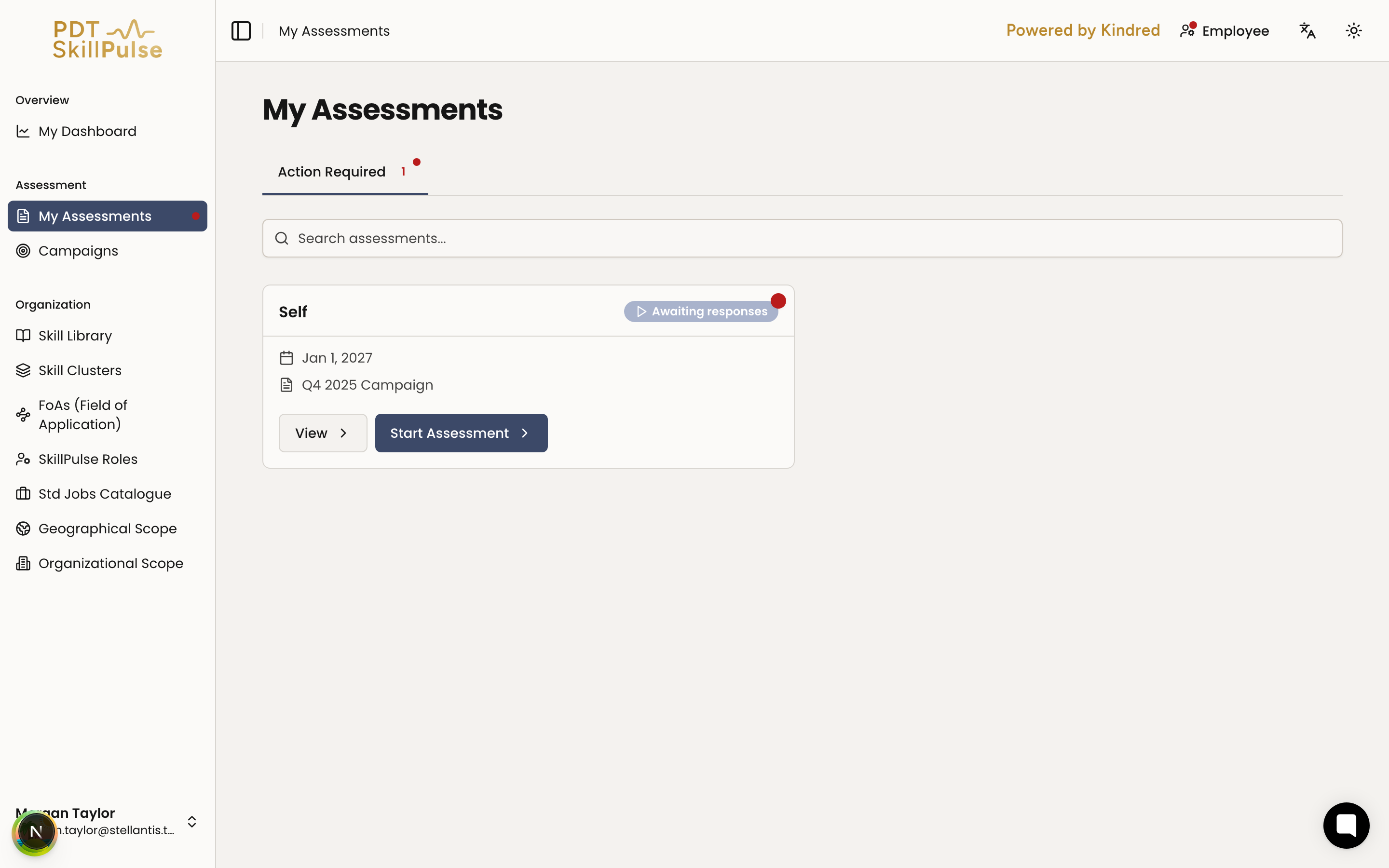
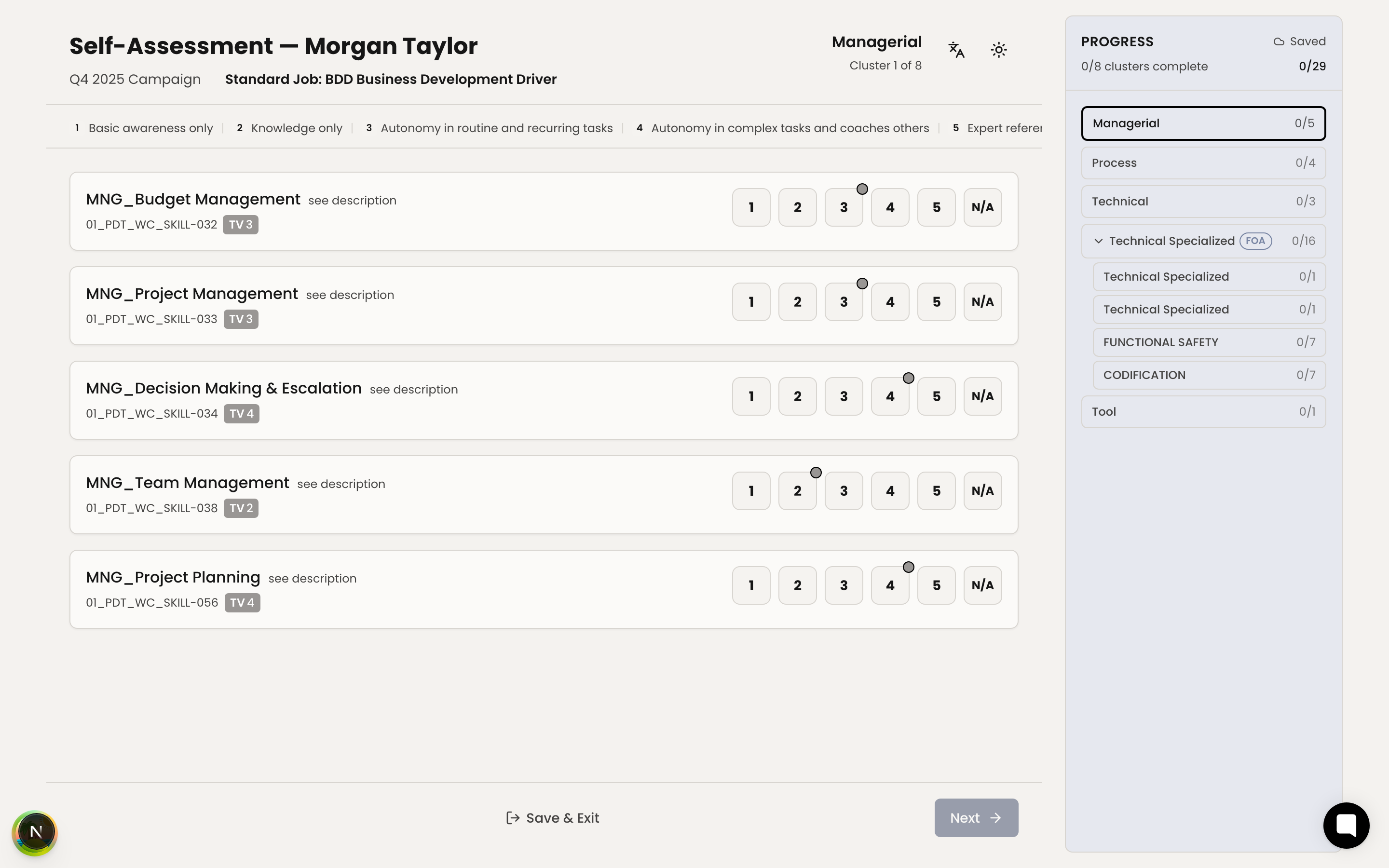
After you submit, the assessment shows Awaiting responses until the co-assessor finish their ratings too (if one is assigned).
You can still change your ratings after submitting, right up until your manager sets the agreed values.
Tip: Rate honestly against the scale. Your co-assessor (if assigned) rates the same skills, and the conversation later is richer when everyone's view is genuine.
Troubleshooting
Problem: You can't find a Start Self-Assessment button. → Solution: The assessment may not be activated yet, or you may still need to approve the setup. Check the status on the assessment page — see How a Skills Assessment Works.