Applies to: All users
Every assessment in SkillPulse follows the same path from start to finish. Knowing the flow helps you understand where you fit and what happens next — whether you're an employee, manager, or co-assessor.
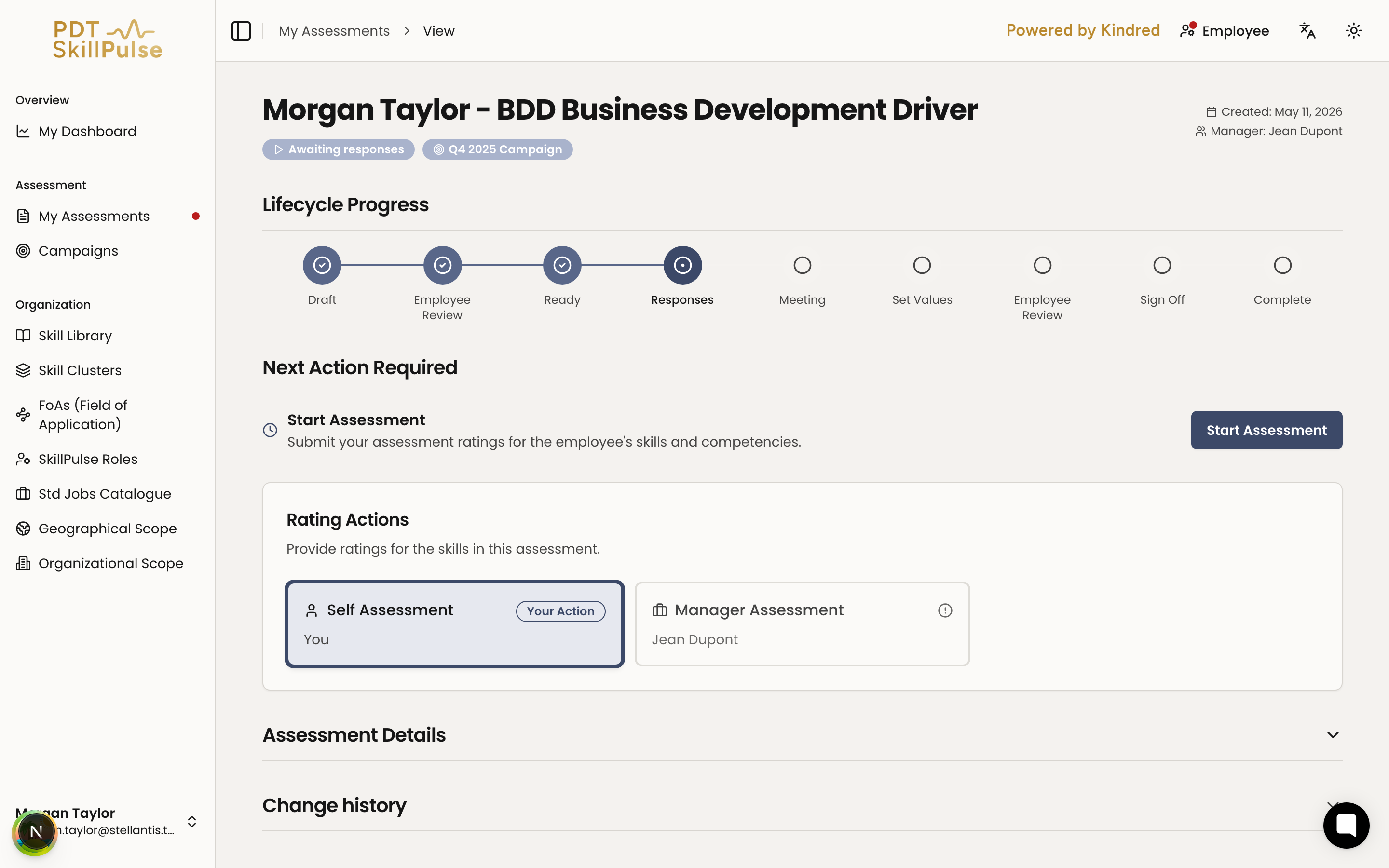
An assessment moves through these stages, shown as a progress tracker on the assessment page:
Draft — the manager builds the assessment (job, skills, co-assessor).
Employee Review — the employee checks the setup and approves it or requests changes.
Ready — the setup is approved and ready for the manager to activate.
Responses — the employee (self-assessment) and the co-assessor (if assigned) will rate the skills. You can edit your ratings after submitting, up until the manager sets the agreed values.
Meeting — the manager schedules an agreement meeting to align on the results; the employee waits until the meeting date is set.
Set Values — once all ratings are in, the manager sets the final agreed value for each skill.
Employee Review — the employee reviews the agreed values and accepts or disputes them.
Sign Off — the manager finalizes the assessment.
Complete — the assessment is locked and results are available.
Step | Who acts |
|---|---|
Build the assessment | Manager |
Review the setup | Employee |
Activate | Manager |
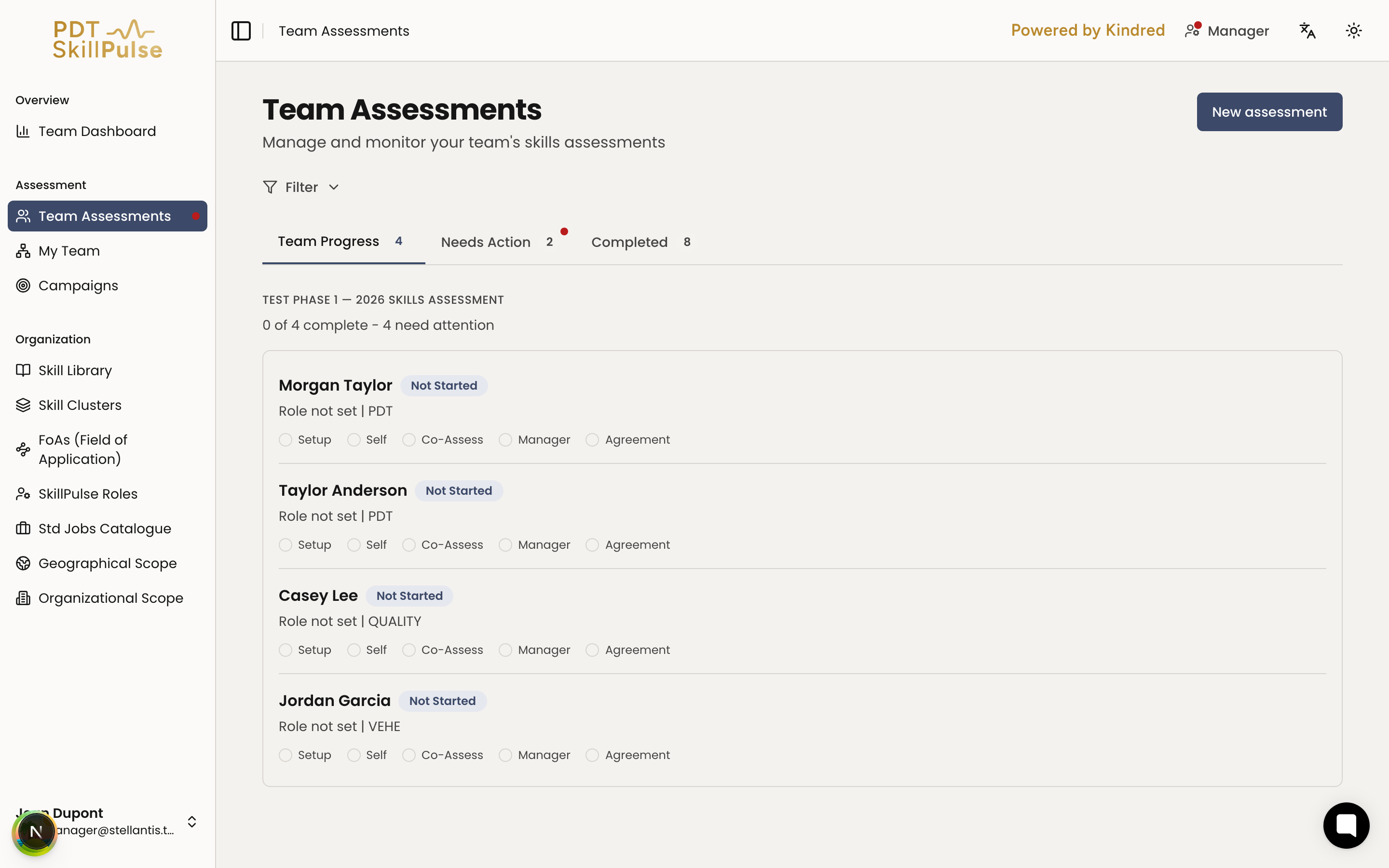
Rate the skills | Employee, Manager, Co-assessor |
Schedule the agreement meeting | Manager |
Set agreed values | Manager |
Review agreed values | Employee |
Sign off | Manager |
Each assessment shows a status badge so you always know where it is:
Draft — being built.
Pending employee review — waiting for the employee to approve the setup.
Ready to activate — approved; waiting for the manager to activate.
Awaiting responses — waiting for ratings.
Date for agreement on assessment — an agreement meeting is being scheduled.
Setting agreed values — manager is choosing final values.
Employee reviewing — employee is reviewing the agreed values.
Pending sign-off — waiting for the manager to finalize.
Disputed — the employee has disputed one or more agreed values. The manager and employee work through the disagreement, and the manager updates the agreed values before signing off.
Completed — finished and locked.
Tip: A red dot in the app tells you when it's your turn in this flow.