
Applies to: All users
SkillPulse tells you when an assessment needs your attention so you never miss a step. You'll see it in two places: a red dot inside the app, and an email.
The red dot inside the app
When you have a task to complete, a small red dot appears next to the area that holds it.
On the role switcher (top bar) — if you have more than one role, the red dot shows which role has a task waiting. For example, if you're both an employee and a manager, the dot tells you which "hat" needs you.
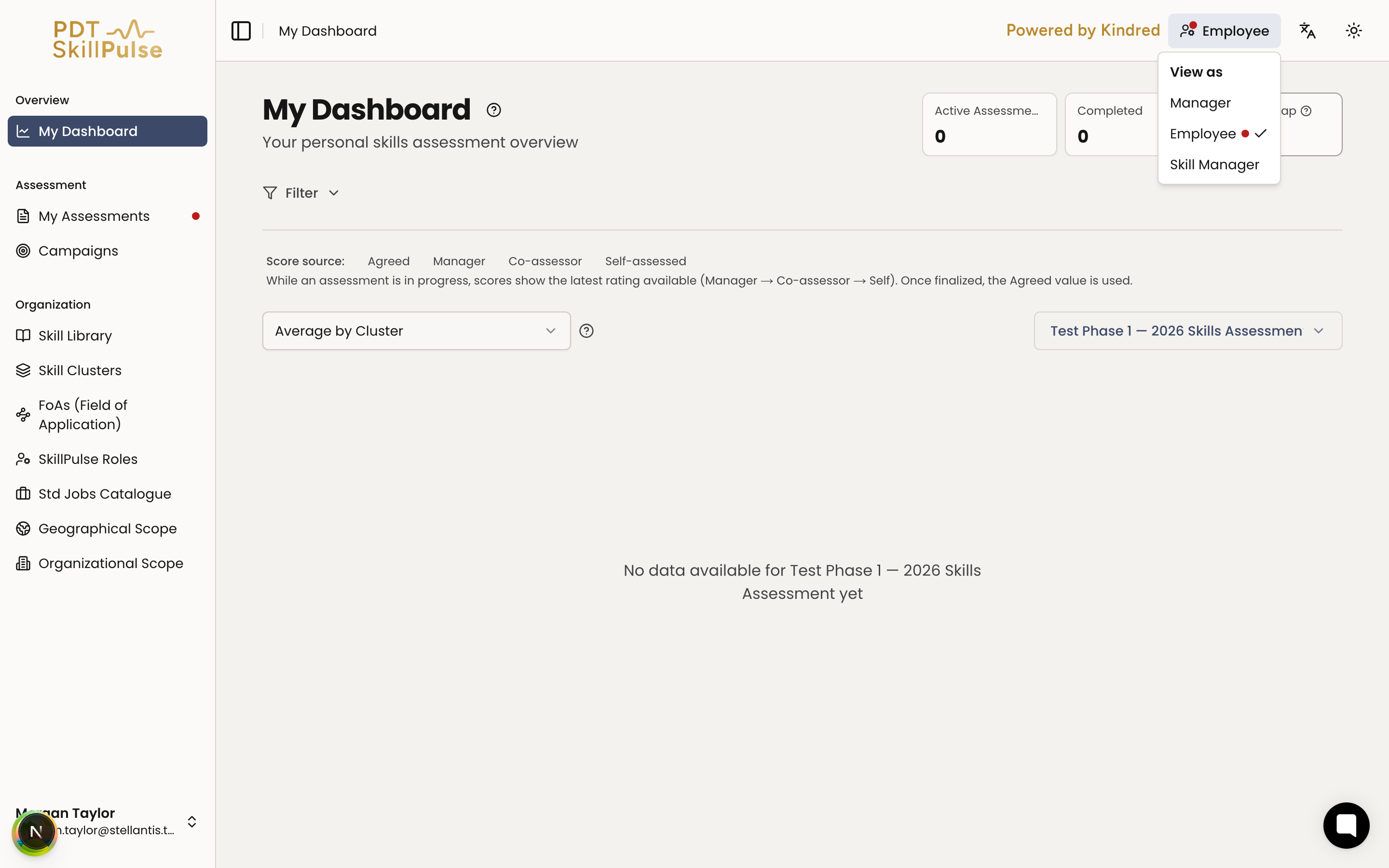
On the sidebar — the red dot appears on the exact item that needs you:
My Assessments — you have a self-assessment, setup review, or values to review.
Team Assessments — you have a manager action, such as activating an assessment, scheduling the agreement meeting, setting agreed values, or signing off.
Co-assessor — you've been asked to complete a peer rating.
What to do when you see a dot
Switch to the role with the dot, if needed (top bar).
Open the sidebar item showing the dot.
Find the assessment marked as needing action and open it — the next step is shown right on the page.
The dot clears once you've completed the task.
Email notifications
SkillPulse also sends an email at key moments — for example when an assessment is assigned to you, when it's your turn to rate, or when agreed values are ready for review. You'll see confirmations like "A notification email has been sent" when an action triggers one. (screenshot coming soon)
Tip: The red dot is the fastest way to find what's waiting. If you're ever unsure where to start, look for it on your sidebar.