
Applies to: All users
SkillPulse adapts to your role, so you only see what's relevant to you. This guide walks through the main parts of the screen and your dashboard.
The sidebar
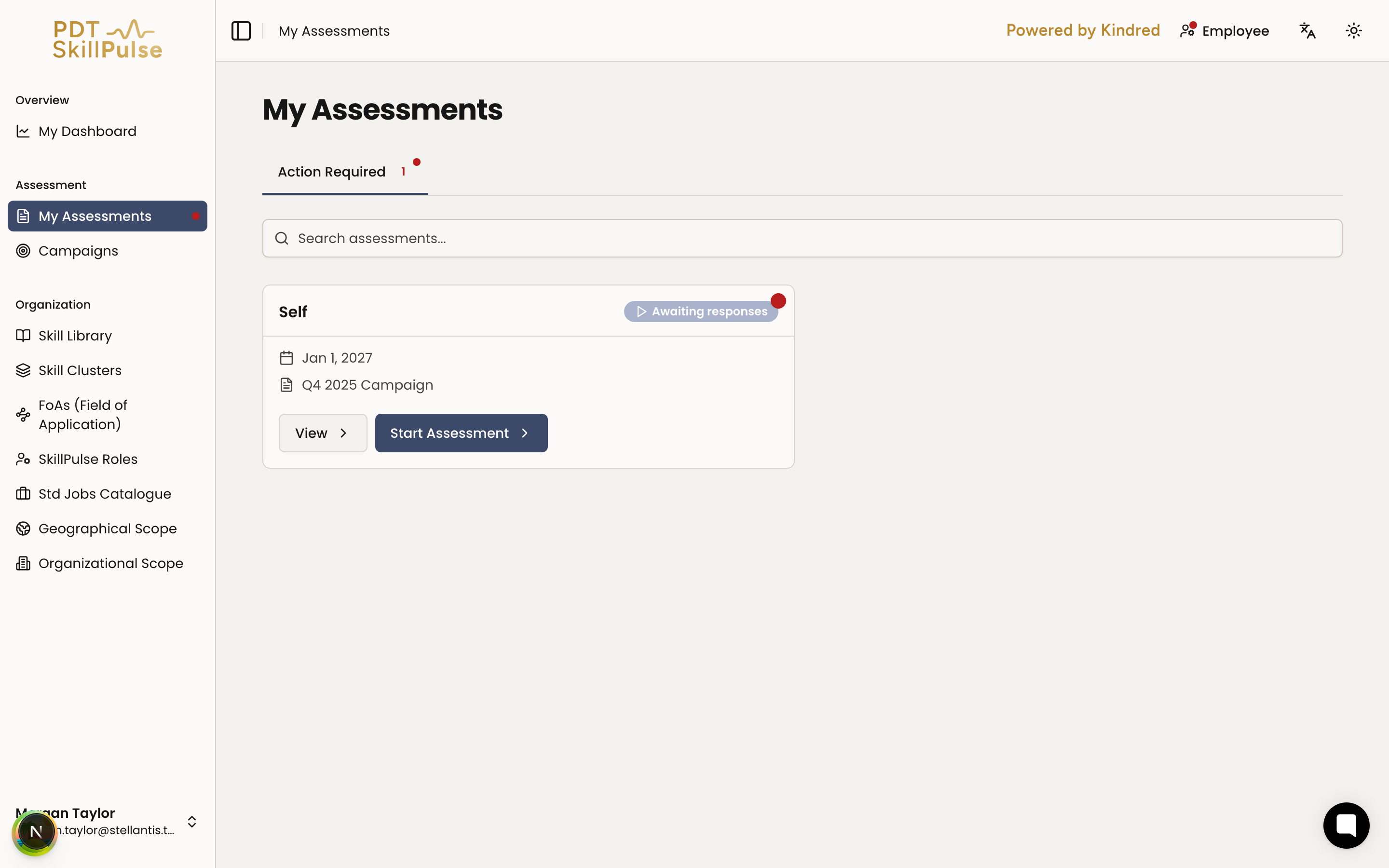
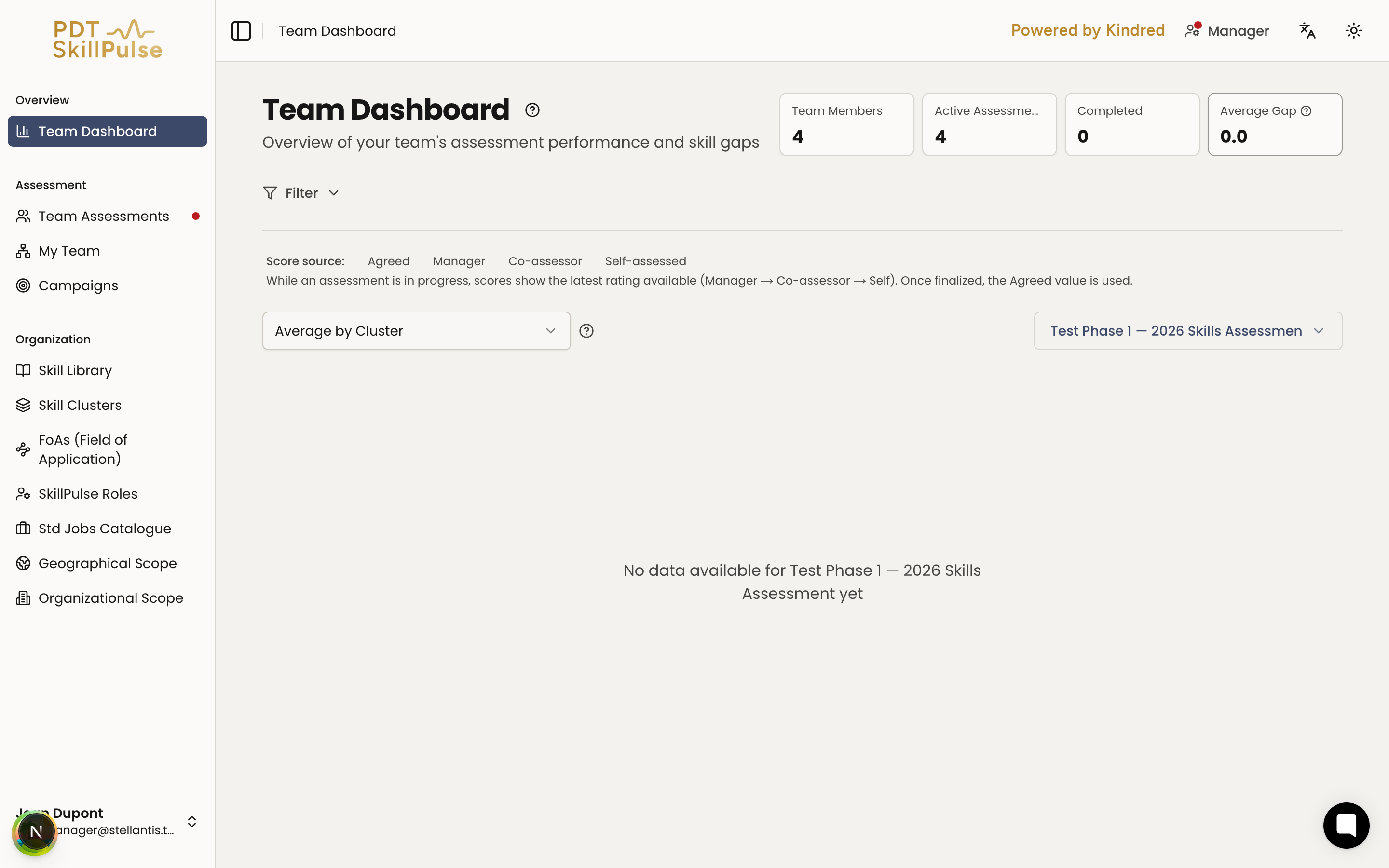
The sidebar on the left is your main navigation. What appears depends on your role:
Employees see My Dashboard, My Assessments, and reference sections like the Skill Library.
Managers also see Team Dashboard, Team Assessments, and My Team.
Co-assessors see a Co-assessor item when they have assignments.
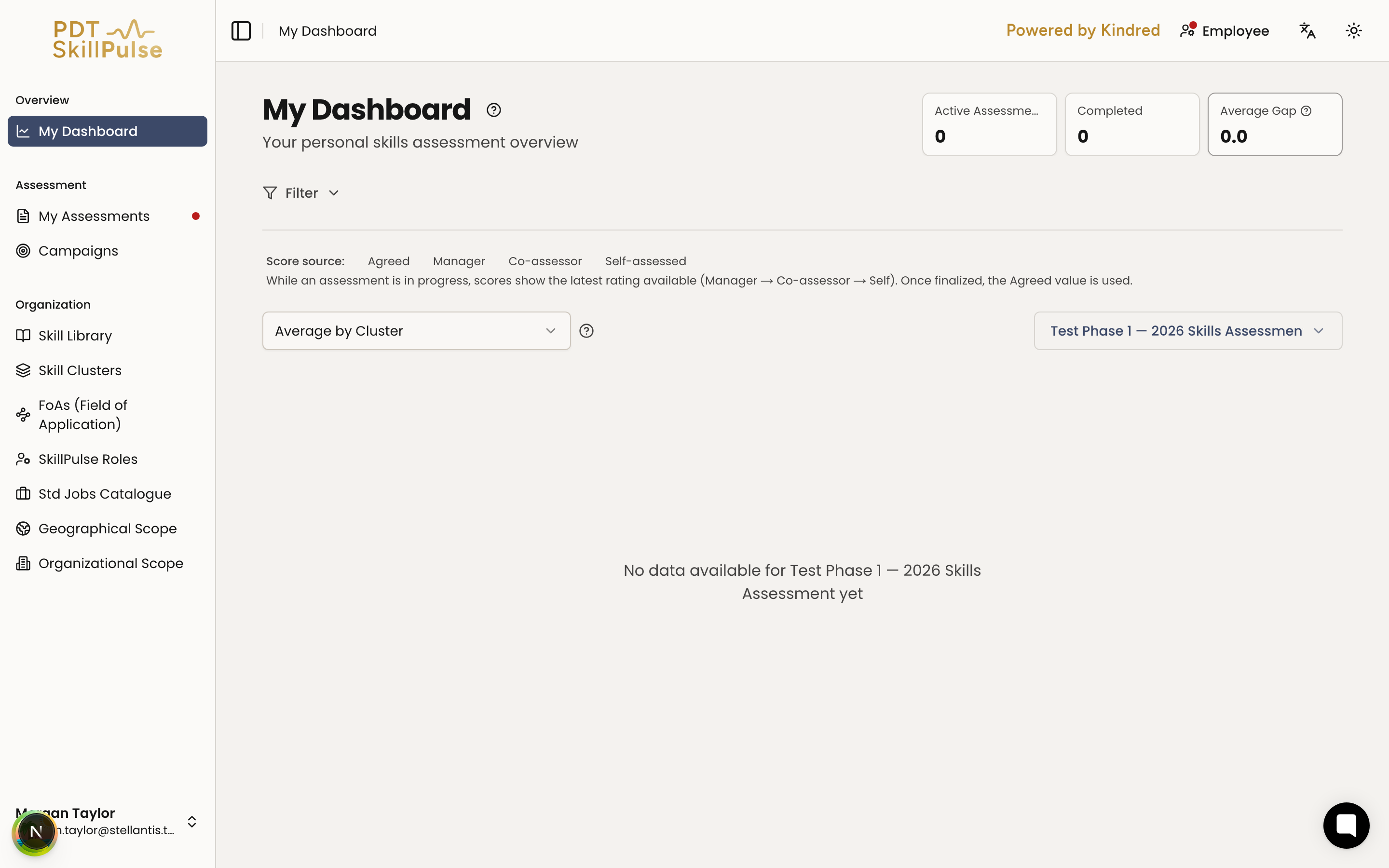
You can collapse the sidebar to icons to give yourself more room.
The top bar
Across the top you'll find:
Breadcrumbs / page title — where you are.
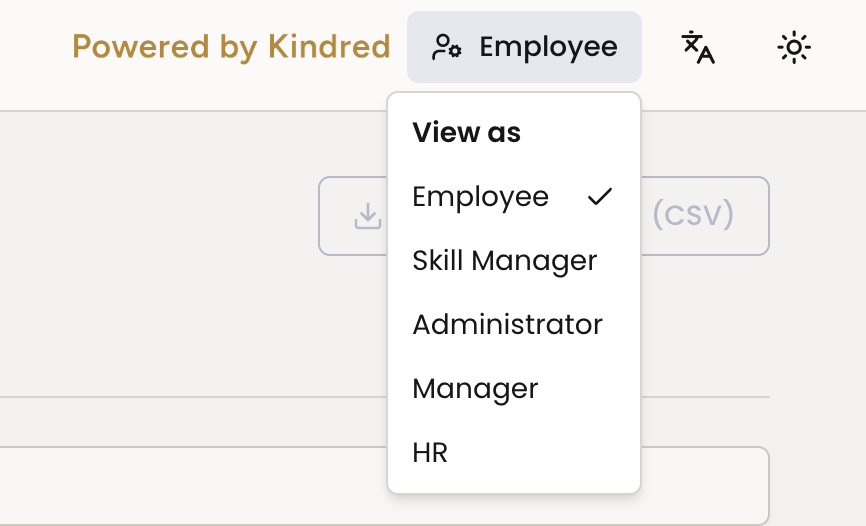
Role switcher — if you have more than one role (for example Employee and Manager), switch your view here. A red dot here means a role has a task waiting.
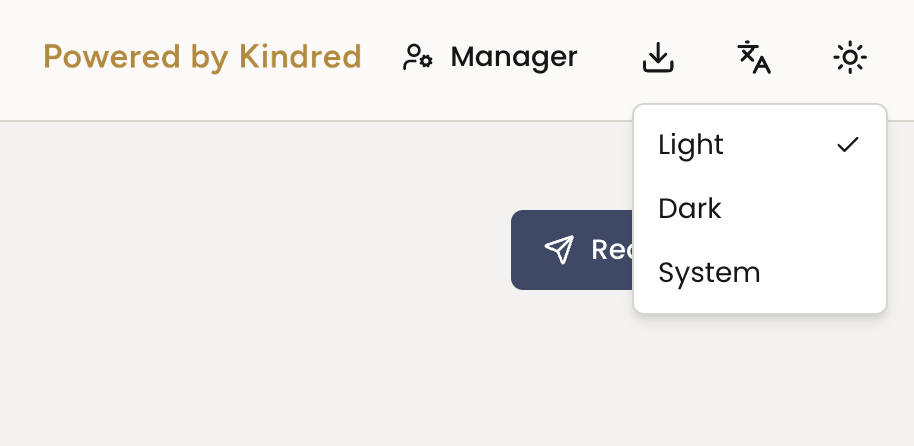
Light/Dark/System Mode - select your preference
Your dashboard
Your dashboard is your home base:
My Dashboard (employees) shows your active and completed assessments, your average skill gap, and your skill gaps grouped by cluster.
Team Dashboard (managers) shows your team's assessment activity and aggregated skill gaps.
Knowing when something needs you
When you have an assessment task to complete, SkillPulse shows a red dot on the relevant area — on the role switcher and on the sidebar item that holds the task. See Knowing When You Have a Task to Do.
Benefits
Find your assessments and team in one or two clicks.
See at a glance when something needs your attention.