
Applies to: Employees with an assessment awaiting setup review
Before any rating begins, you get to check the setup your manager created — the job, skills, and people involved — and either approve it or ask for changes.
Before you start
You'll be notified when an assessment is Pending employee review.
Rating can't start until you approve the setup, so this step keeps things moving.
Steps
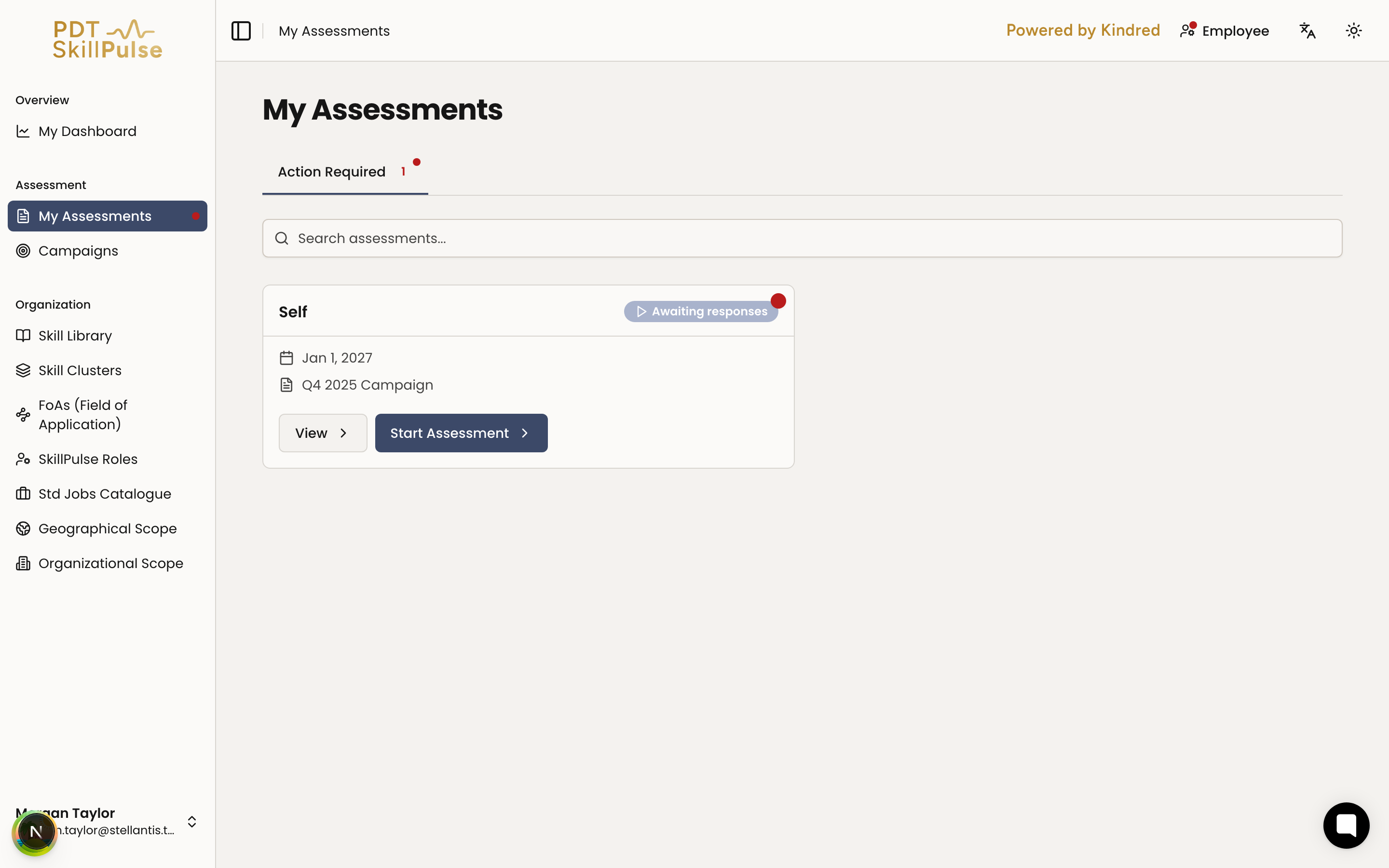
Open the task — go to My Assessments → Action Required and open the assessment marked for review.
2. Check the details — review the setup:
The Standard Job and Fields of Application.
The skills being assessed (core, specialized, tools).
The co-assessor, if one is assigned. (screenshot coming soon)
Approve or request changes:
If everything looks right, approve the setup.
If something's off, request changes — for example to add or remove a skill — and add a comment explaining why.
Done — once you approve, your manager activates the assessment and rating can begin.
Tip: Not sure what a Field of Application is? See Understanding Fields of Application (FoAs).
Related articles
Need help?
If the setup looks wrong and you're not sure what to change, add a comment with your question when you request changes — your manager will see it.