Applies to: Managers
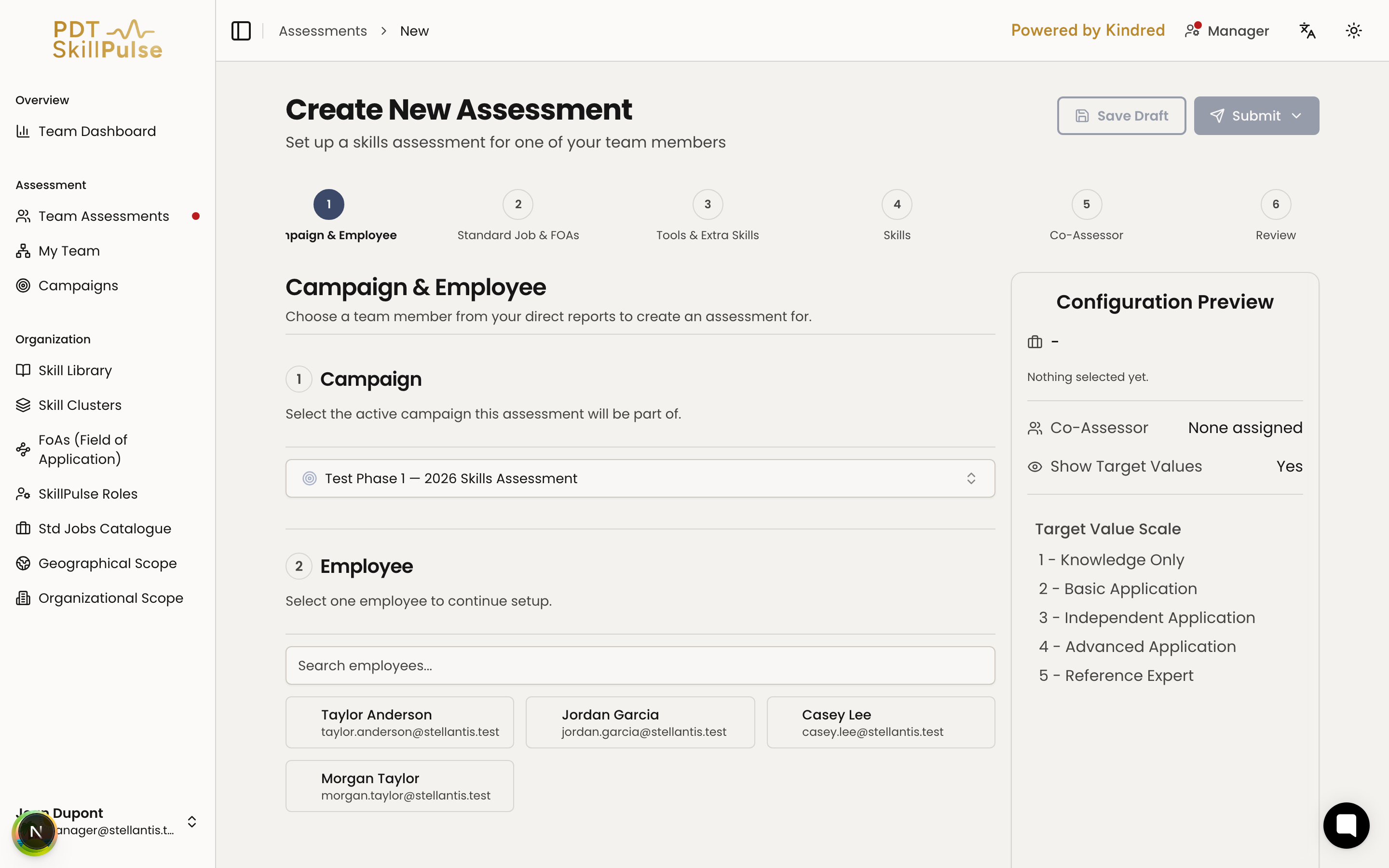
You create an assessment with a step-by-step wizard that walks you from choosing the employee through to a final review.
Have an active campaign to assign the assessment to.
Know the employee's Standard Job and the Fields of Application that fit their work — see Understanding Fields of Application (FoAs).
Start the wizard — go to Team Assessments and select New assessment.
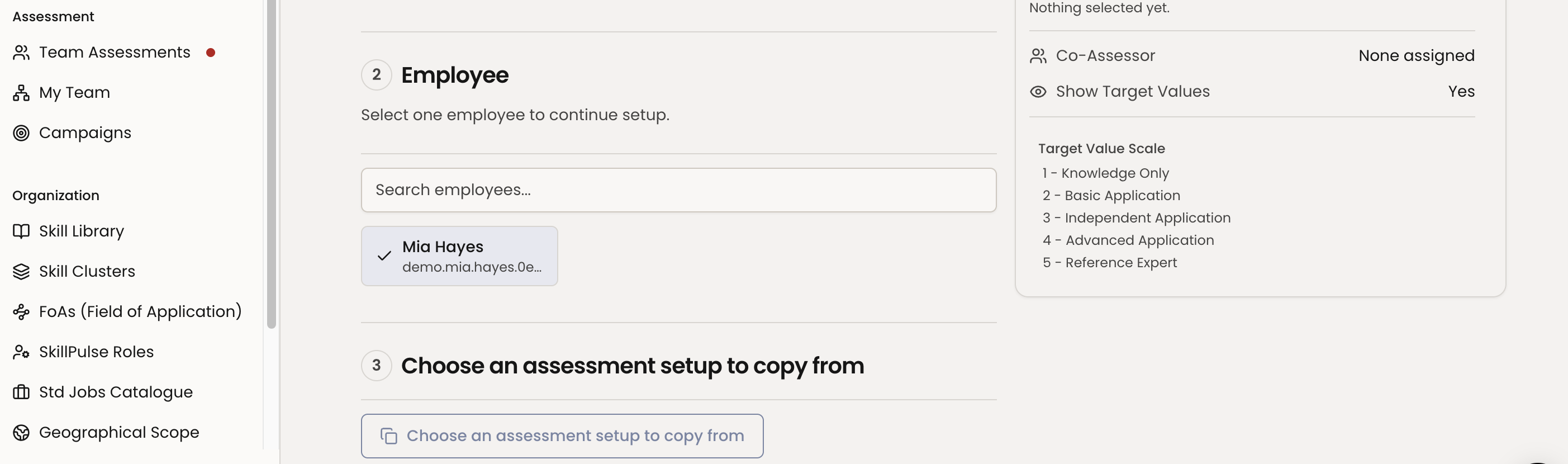
2. Campaign & Employee — choose the campaign and the team member to assess.
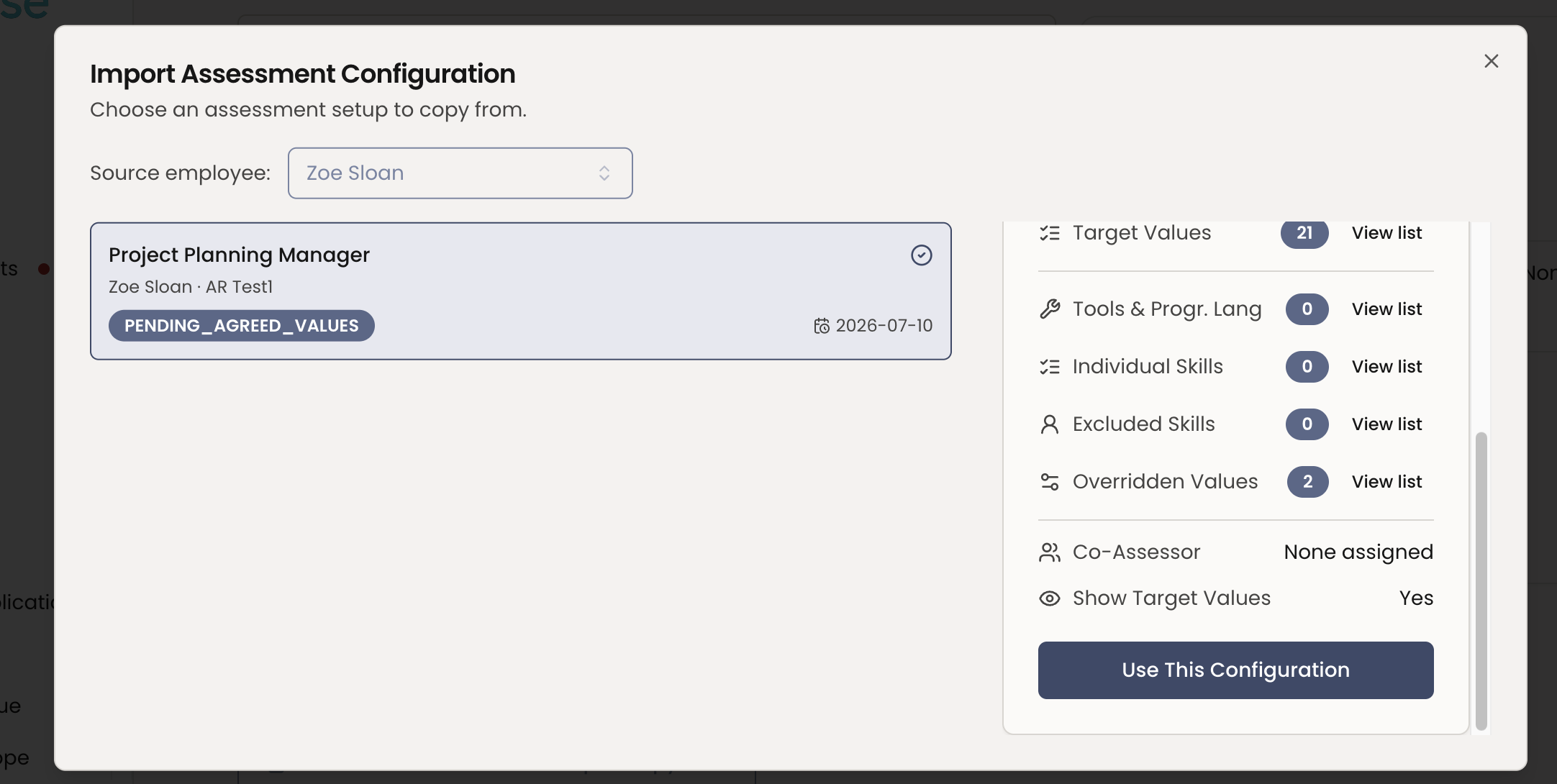
Once you’ve created your first assessment you’ll notice the ability to use those assessments as an editable template for other team members.
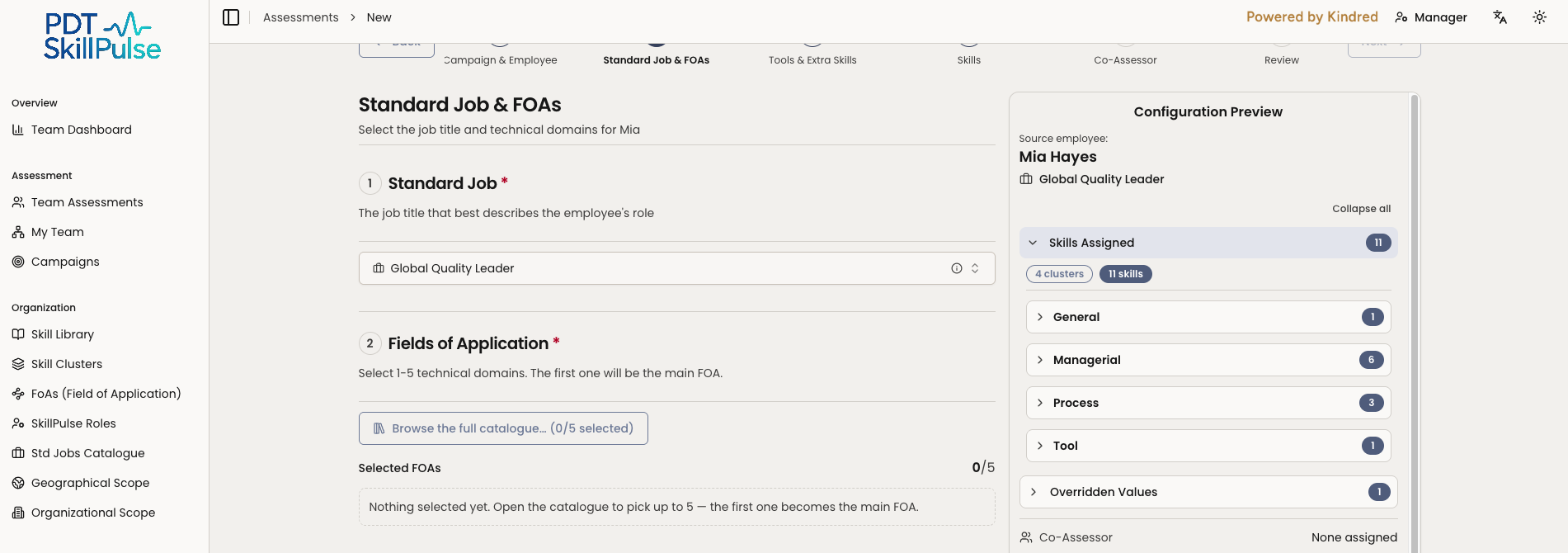
3. Standard Job & FOAs — Standard Job will be automatically assigned. If the Standard Job is not correct you must reach out to HRBP to have this updated in OneHR. The expectation is that once the job is updated in OneHR the update will then sync with SkillPulse within the next 24 hours.
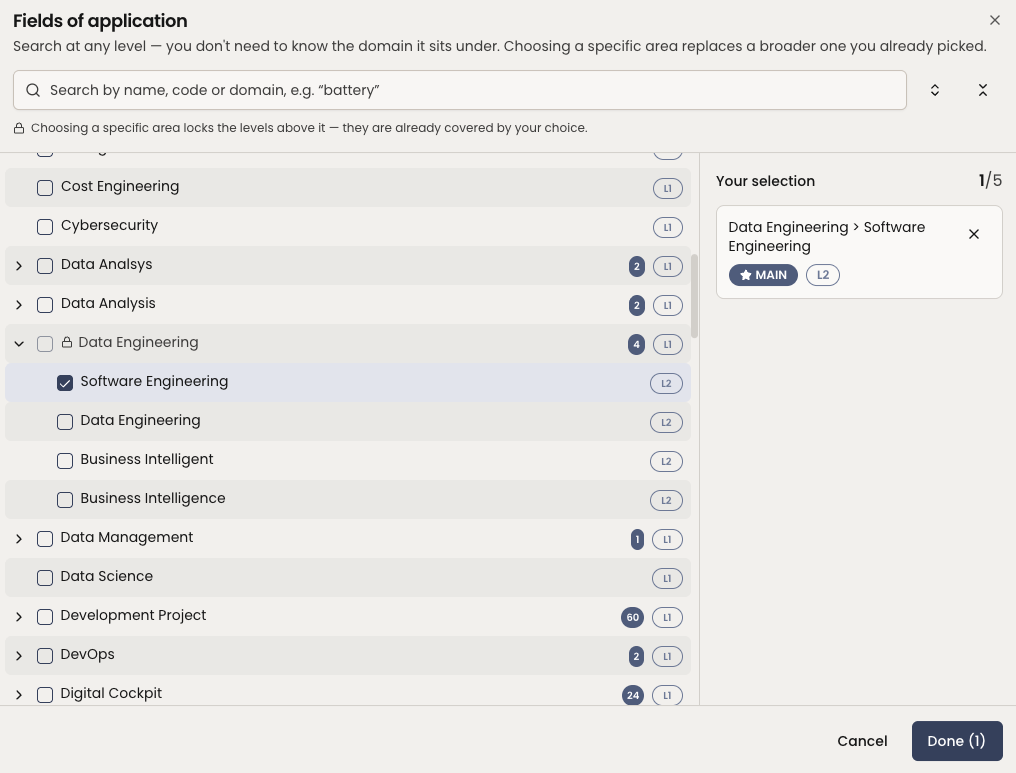
Next select one or more Fields of Application. Start by selecting browse the full catalog. This determines the skills.
Pop up displays where you can search by name, code or domain to select FoA’s.
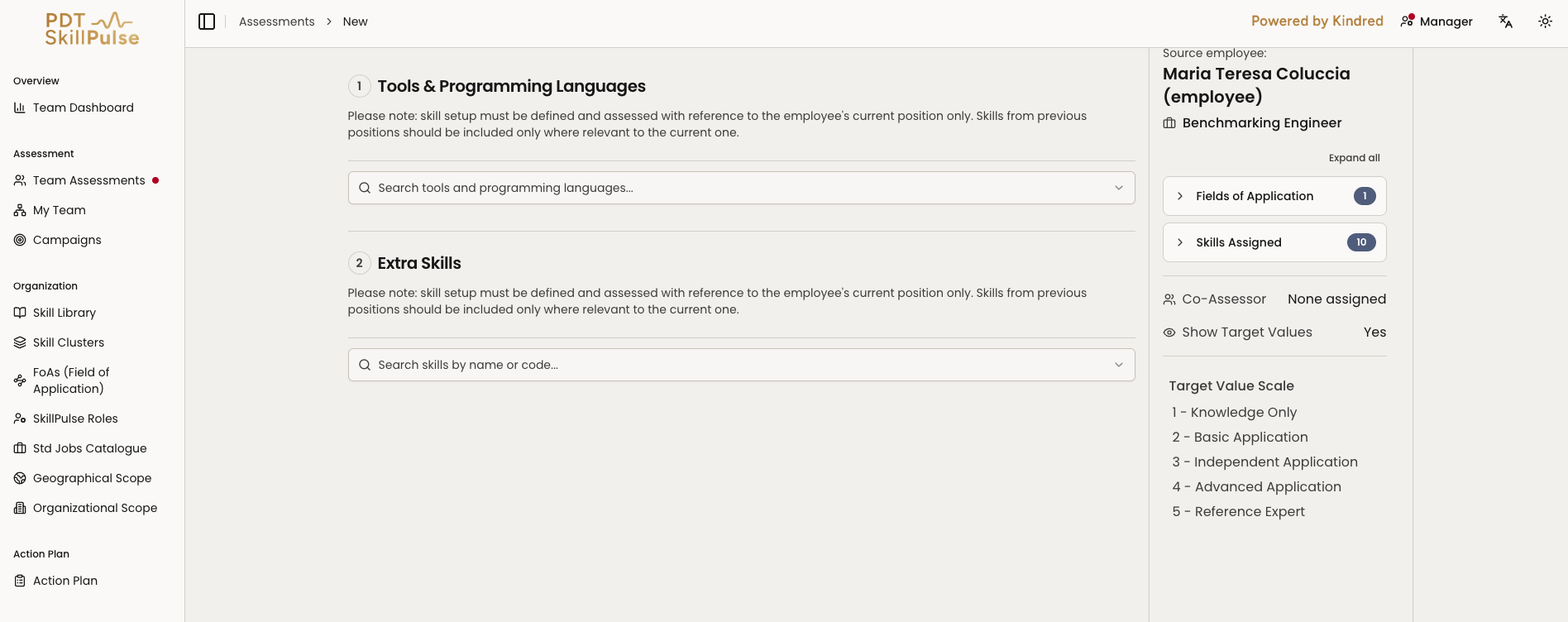
4. Add Tools & Programming Languages along with any Extra Skills
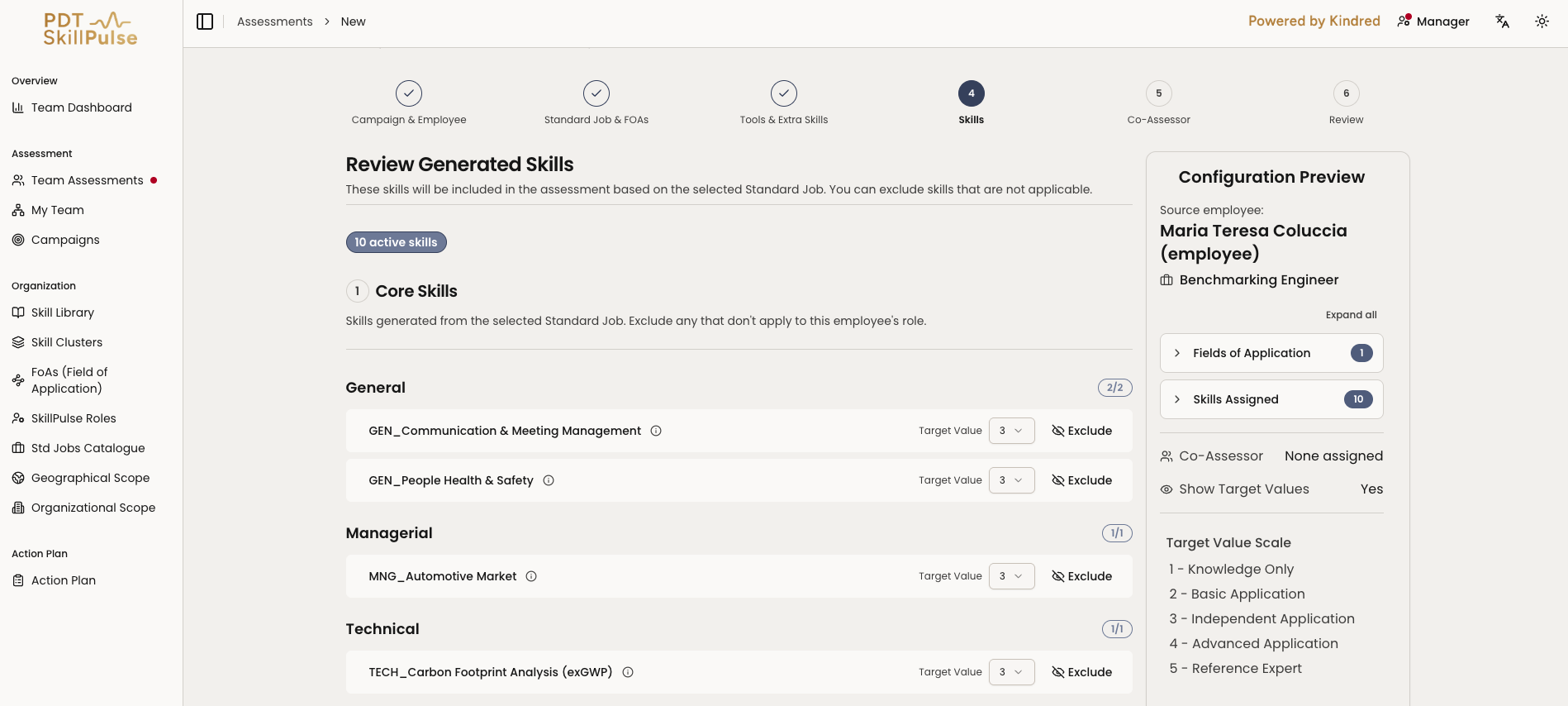
Assessment Review - review the complete skill set including the Default Standard Job Skill Set and exclude any that don't apply.
Adjusting Target Values
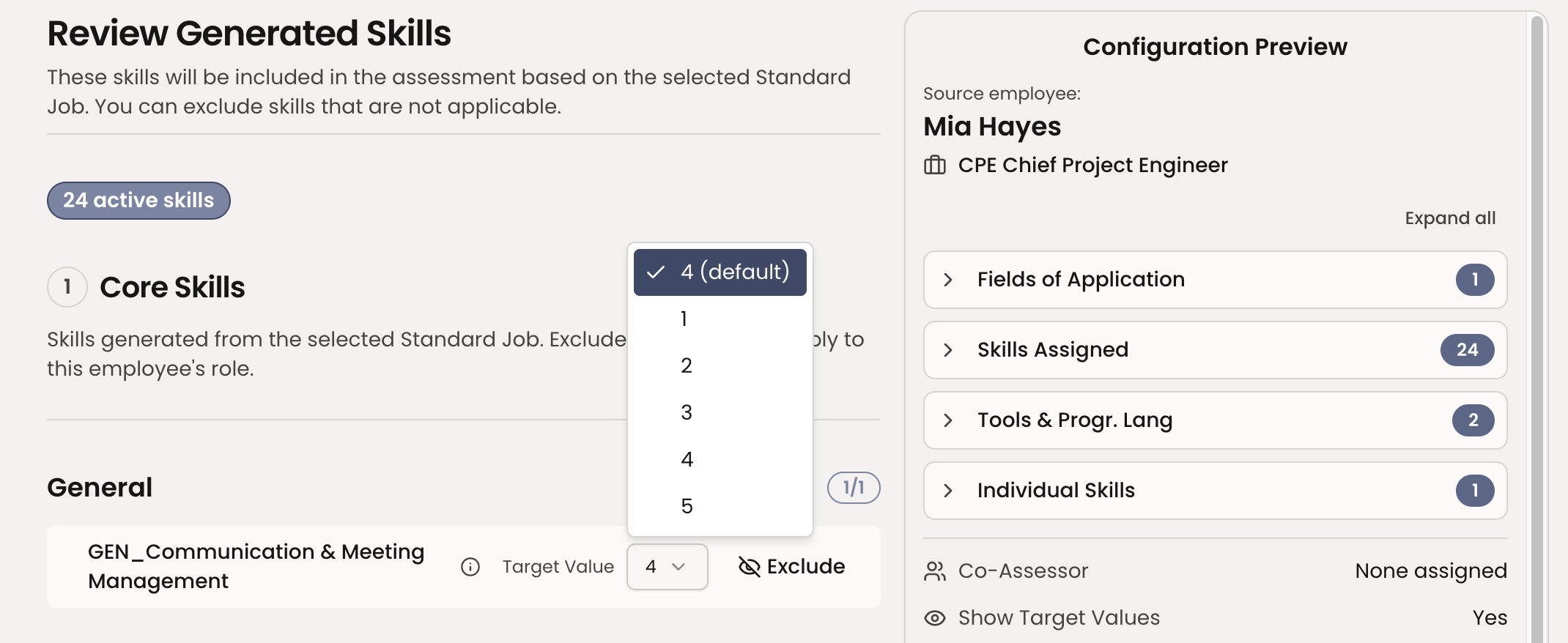
You can also adjust the target value for any skill or tool if the default from the Standard Job doesn't fit the role. Set the new 1–5 value and provide a reason when prompted. Adjusted targets are flagged so it's clear they differ from the job default.
Changing a Target Value
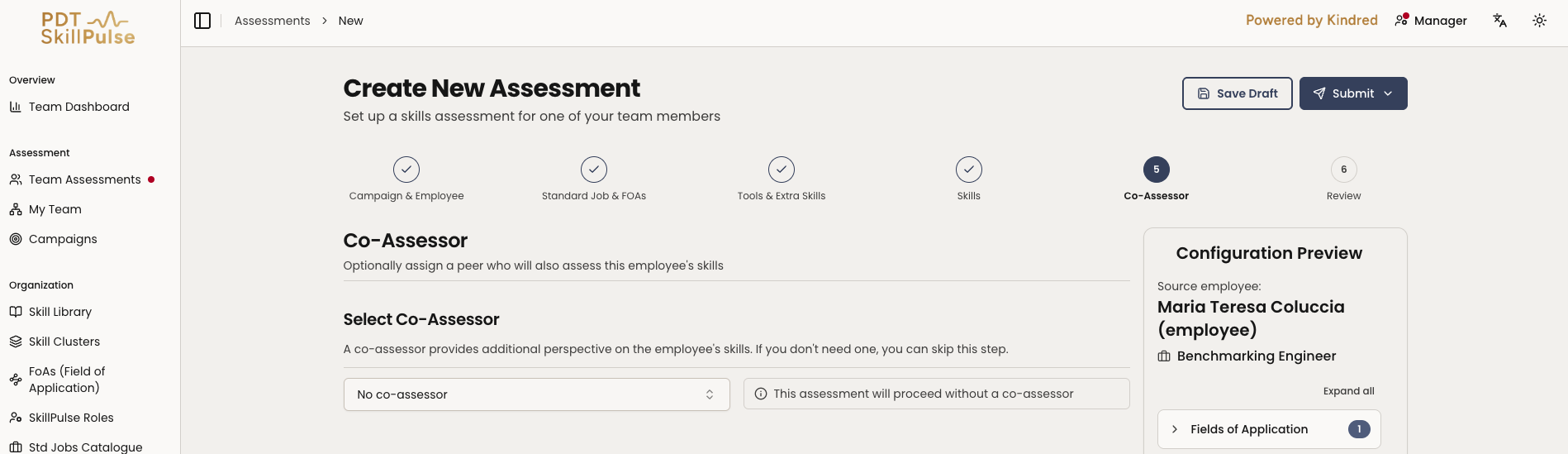
6. Co-Assessor — optionally assign a peer to also rate the employee.
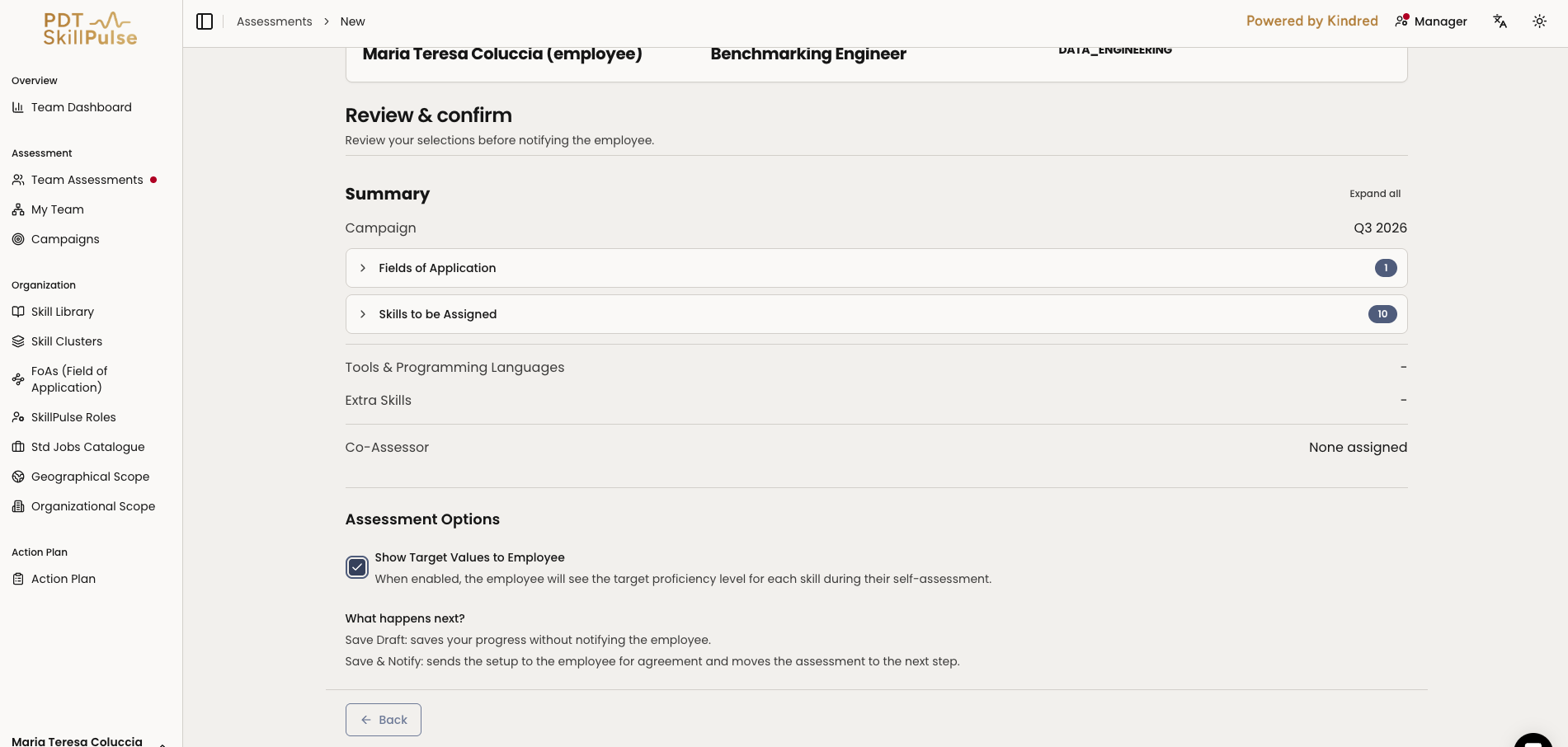
7. Review — check everything. You can also choose whether to show target values to the employee.
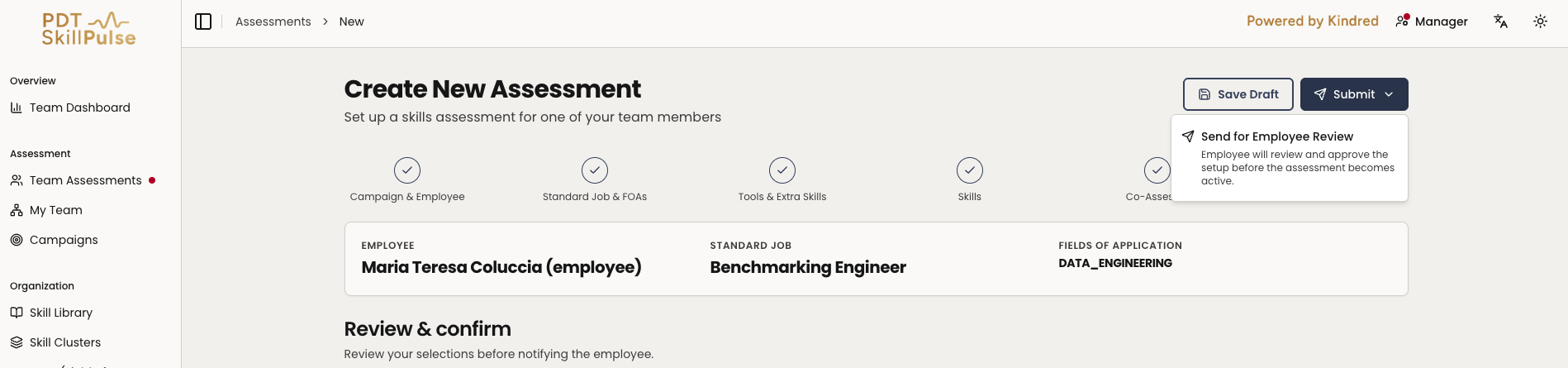
8. Confirm and save — confirm that the employee has been consulted about the setup, then choose Save Draft to keep working later, or Submit to send it to the employee for review.
After you save and notify, the employee reviews the setup and has the opportunity to dispute before you activate it.
Tip: Adding a co-assessor gives a peer perspective alongside yours — useful for skills you don't directly observe.