
Applies to: Employees with an assessment
When your manager sets up an assessment for you, you have a few simple tasks: review the setup, rate your own skills, and later review the final values. This guide shows you where to find your assessments and what to expect.
SkillPulse- Getting Started as an Employee

Where your assessments live
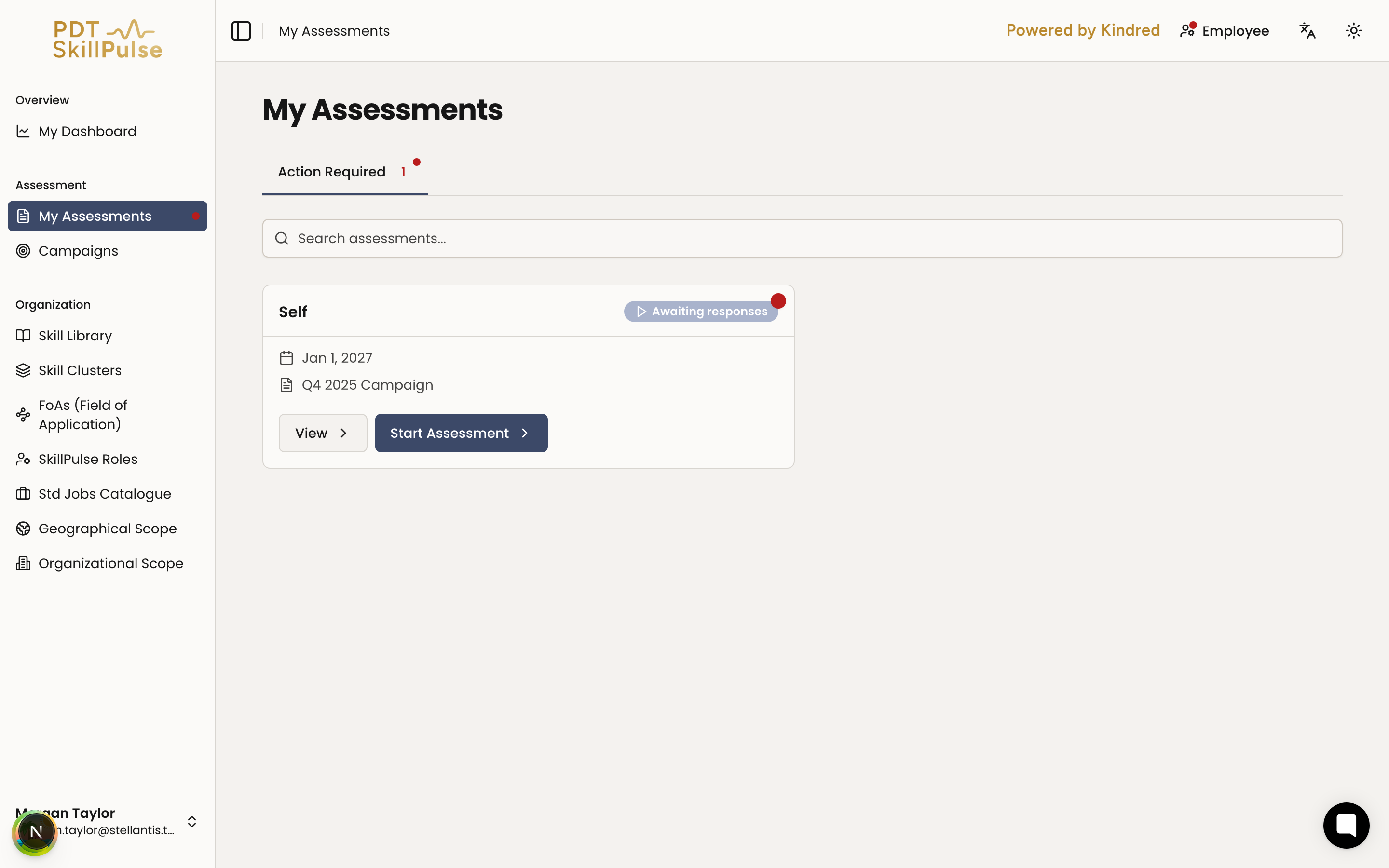
Open My Assessments from the sidebar. Your assessments are organized into tabs:
Action Required — needs you now (review setup, self-assess, or review agreed values).
In Progress — under way, waiting on others.
Completed — finished, with results you can view.
Reading an assessment card
Each card shows the campaign, job, current status, deadline, and the next action you need to take. Start with the Action Required tab and work through what's there.
Your part in the flow
Across the life of an assessment, you'll typically:
Review the setup your manager created and approve it (or request changes).
Complete your self-assessment by rating your skills.
Review the agreed values your manager sets and accept or dispute them.
View your results once it's complete.
For the full picture of all the steps, see How a Skills Assessment Works.
Tip: A red dot on My Assessments in the sidebar means something needs you. See Knowing When You Have a Task to Do.